Let Me Tell You a Secret... Psst! 🤫

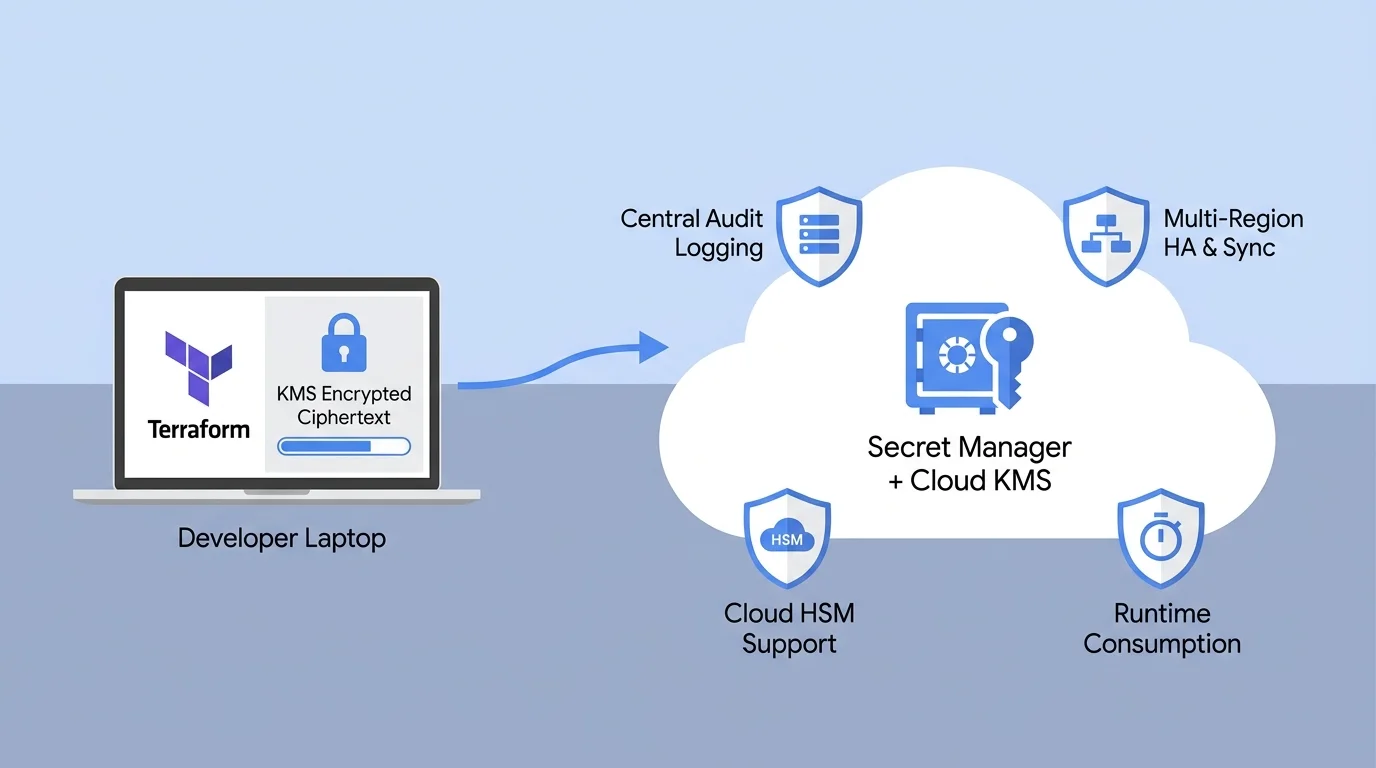
Don’t be secretive about managing your secrets! Since it is October Cybersecurity Awareness Month, I decided to expose my secret on how I manage secrets in Google Cloud using Secret Manager, Cloud KMS, and Terraform.
In cybersecurity, we spend a lot of energy trying to get as close as possible to zero exploitable vulnerabilities (something I wrote about recently in my post on AI Era Vulnerability Trends).
Right behind vulnerabilities sits the second biggest challenge in cloud security: getting to zero publicly exposed secrets.
We have all seen how fast things go wrong when an API key, a private key, a database password, or a token accidentally ends up in a Git repository, a local .env file, or a CI/CD log. Automated bots scan public and leaked repos around the clock, and an exposed credential can be abused within minutes.
Today, I am not going to be secretive about my secrets anymore. Not because I am sharing my private keys here (nice try 😉), but because I store my secrets with confidence in Google Cloud Secret Manager combined with Cloud KMS. Let me walk you through what Secret Manager is, why you should pair it with KMS in Terraform, and how to ditch manual workarounds for good.
Part 1: What Is Google Cloud Secret Manager (and Why Use It)?
Google Cloud Secret Manager is a managed, central place to store, version, and control access to sensitive data such as API keys, private keys, tokens, TLS certificates, and database passwords.
Instead of scattering secrets across .env files, scripts, or pipeline configs, using Secret Manager gives you five big advantages right away:
- Central Audit Logging: Every time a secret is created, rotated, or read, Secret Manager logs the event in Cloud Audit Logs. You always have a central audit trail showing who or which workload accessed a secret and when.
- High Availability, Backups & Multi-Region Sync: You don’t need to maintain or back up your own vault cluster. Secret Manager automatically syncs your secrets across multiple Google Cloud regions (
auto), or lets you pick exact regions (user_managed, like syncing betweeneurope-west4andeurope-west1to keep everything inside the EU). - Versioning & Easy Rotation: Every update creates a new version (
1,2,latest), making key rotation and rollbacks simple without breaking running apps. - Least-Privilege IAM: You grant
roles/secretmanager.secretAccessorper individual secret instead of project-wide, so each service only sees what it actually needs. - Scalable Runtime Consumption: Your applications and compute workloads on Cloud Run, GKE, Compute Engine, or Cloud Run functions pull secrets directly at runtime. Nothing is baked into container images or left sitting on disk.
Part 2: Why the Old “Cloud Console Workaround” Is a Hassle
Secret Manager is great, but when you build everything as Infrastructure as Code (IaC) with Terraform, you quickly hit a classic question: How do you set the initial secret value in your Terraform plan without putting plaintext secrets in Git?
Because you never want plaintext secrets in .tf or terraform.tfvars files, many teams still use an old workaround:
- They create an empty
google_secret_manager_secretentry in Terraform. - After
terraform apply, they open the Google Cloud Console and manually paste the secret value in by hand.
Let’s be honest: that old way is a lot of hassle. Your first deployment fails because the secret value isn’t there yet, it is hard to automate across environments, and manual clicking in the Console goes against everything we want with Infrastructure as Code.
Part 3: The Real Secret: Secret Manager + Cloud KMS in Terraform
To keep everything 100% in Terraform while keeping your credentials safe, combine Secret Manager with Google Cloud Key Management Service (Cloud KMS).
Before you push your code or deploy, you encrypt your initial secret locally using a Cloud KMS key. Only the encrypted base64 ciphertext goes into your Terraform configuration. Without IAM permission to decrypt with that KMS key in Google Cloud (roles/cloudkms.cryptoKeyDecrypter), the ciphertext string is useless to anyone else.
Here is how to set it up in a few short lines of Terraform.
1. Create a Cloud KMS Key Ring and Key
First, create a KMS Key Ring and symmetric encryption key in Terraform:
resource "google_kms_key_ring" "secrets_keyring" {
  project  = var.project_id
  name     = "app-secrets-keyring"
  location = "europe-west4"
}

resource "google_kms_crypto_key" "secrets_key" {
  name            = "terraform-secrets-key"
  key_ring        = google_kms_key_ring.secrets_keyring.id
  rotation_period = "7776000s" # Auto-rotate every 90 days
  purpose         = "ENCRYPT_DECRYPT"
}
2. Encrypt Your Initial Secret Locally
Next, encrypt your secret locally from your terminal using gcloud kms encrypt and turn it into a base64 string:
printf "my-super-secret-api-token-123" | gcloud kms encrypt \
  --project="your-gcp-project-id" \
  --location="europe-west4" \
  --keyring="app-secrets-keyring" \
  --key="terraform-secrets-key" \
  --plaintext-file=- \
  --ciphertext-file=- | base64
Put that encrypted string in terraform.tfvars:
api_token_ciphertext = "CiQAz9x...your-kms-encrypted-base64-ciphertext...=="3. Create the Secret Manager Entry & Version in Terraform
Now, decrypt the KMS ciphertext inside Terraform and create both the Secret Manager entry (synced across two EU regions) and the secret version in one go:
# 1. Decrypt the KMS ciphertext at deploy time
data "google_kms_secret" "api_token" {
  crypto_key = google_kms_crypto_key.secrets_key.id
  ciphertext = var.api_token_ciphertext
}

# 2. Create the Secret Manager entry synced across regions
resource "google_secret_manager_secret" "api_token" {
  project   = var.project_id
  secret_id = "prod-external-api-token"

  replication {
    user_managed {
      replicas {
        location = "europe-west4"
      }
      replicas {
        location = "europe-west1"
      }
    }
  }
}

# 3. Set the secret version directly from Terraform (no Console clicking!)
resource "google_secret_manager_secret_version" "api_token_v1" {
  secret      = google_secret_manager_secret.api_token.id
  secret_data = data.google_kms_secret.api_token.plaintext
}

# 4. Grant least-privilege runtime access to your workload SA
resource "google_secret_manager_secret_iam_member" "workload_access" {
  project   = var.project_id
  secret_id = google_secret_manager_secret.api_token.id
  role      = "roles/secretmanager.secretAccessor"
  member    = "serviceAccount:${google_service_account.app_runtime_sa.email}"
}
(Tip: Always pair this with a secure Google Cloud Storage Terraform state backend, or use Terraform 1.10+ ephemeral KMS secrets with secret_data_wo so plaintext values never touch state!)
Part 4: High-Security Environments: Cloud HSM & External Hardware HSMs
Depending on your industry and compliance requirements, you might need hardware-backed keys. Because Cloud KMS sits right underneath this setup, scaling up is easy:
- Cloud HSM: With a single line (
protection_level = "HSM"on yourgoogle_kms_crypto_key), your keys live inside FIPS 140-2 Level 3 / FIPS 140-3 validated hardware security modules in Google Cloud. - External Hardware HSMs (like Thales): For industrial, banking, or high-security environments where you need physical control over your own hardware appliances, Cloud External Key Manager (Cloud EKM) lets you attach your own external hardware HSMs, such as Thales Luna or CipherTrust HSMs, while keeping the exact same Terraform and Secret Manager workflow.
Wrapping Up: My Secret Is Out!
There you go: for October Cybersecurity Awareness Month, I officially exposed my secret about managing secrets!
Don’t be secretive about how you manage your secrets. Store them in Google Cloud Secret Manager, encrypt your initial Terraform secrets locally with Cloud KMS (or HSM when required), and leave manual Console workarounds in the past.
Have questions or want to share how you manage secrets in Google Cloud? Connect with me on LinkedIn or reach out via my contact page.
VAMOS, happy coding! 😃

Jorge Liauw Calo
Security Engineer at Google Cloud (Google Cybershield) with 13+ years of experience in Cybersecurity across highly regulated industries including Semiconductor, Banking, Fintech, and Insurance. Active member of the Google Cloud Community BeNeLux and Google Cloud Security Community Amsterdam.