Secure Your Terraform State in a Google Cloud Storage Bucket

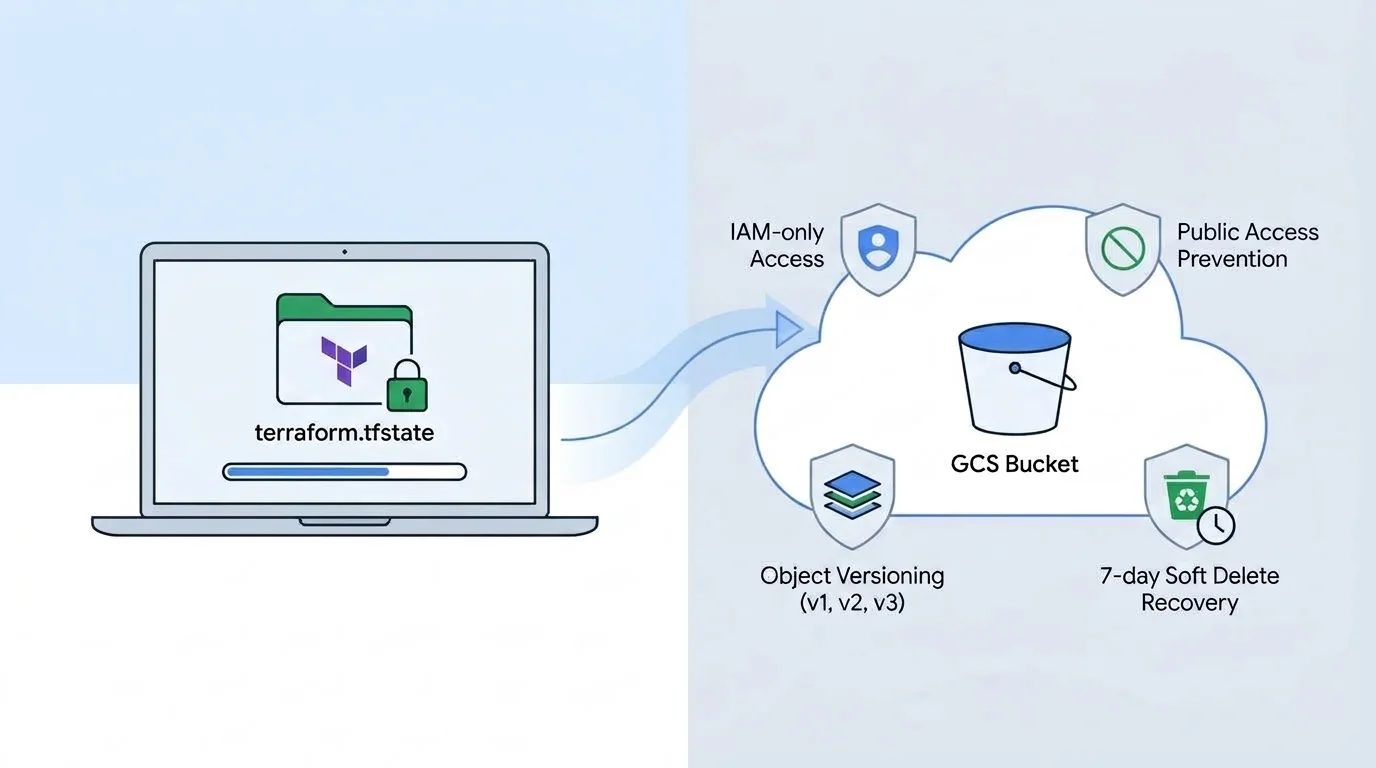
When you first start experimenting with Terraform on your own, storing the state file (terraform.tfstate) locally on your laptop works fine. You run terraform apply, Terraform creates a local state file in your project folder, and your resources are up and running in Google Cloud.
However, as soon as you move beyond a quick local test, work together in a team, or run your deployments through CI/CD pipelines, keeping a local terraform.tfstate file on your machine quickly becomes a problem.
To make it fast and easy to set up a secure remote backend from day one, I created and updated my GitHub repository: cloudstorage-terraform-state-backend.
Why a Local Terraform State File Is a Risk
Terraform relies on its state file to know which Google Cloud resources it manages and how your code maps to real-world infrastructure. Keeping that file on your laptop causes three major issues:
- No single source of truth when working with more than 1 developer
As soon as you run Terraform with more than one developer (or alongside a CI/CD pipeline), a local state file breaks down. Nobody else has the latest state on their machine, and without remote state locking, two people running
terraform applyat the same time can corrupt the state or overwrite each other’s changes. - Sensitive data sitting unencrypted on your laptop
Even if you don’t hardcode secrets in your
.tffiles, Terraform often stores sensitive outputs, tokens, private IP addresses, and resource metadata insideterraform.tfstatein plain text. Leaving that file sitting on a local disk (or accidentally committing it to Git) is a major security risk. - No remote backup or failsafe If your laptop breaks or you accidentally delete your project directory, your local state file is gone. Without a remote backup and version history, recovering your Terraform state is painful and time-consuming.
Benefits of Using cloudstorage-terraform-state-backend
My cloudstorage-terraform-state-backend repository gives you a clean, ready-to-use Terraform plan that creates a hardened Google Cloud Storage (GCS) bucket specifically configured for storing Terraform state:
- Single source of truth for teams (+1 developer & CI/CD): Centralizes your state in Google Cloud Storage with built-in state locking, so multiple engineers and pipelines can safely collaborate without overwriting each other’s changes.
- Remote backup and versioning for a built-in failsafe: Turns on Object Versioning and a 7-day Soft Delete policy so you always have a remote backup and can easily roll back to a previous state version if something goes wrong. A lifecycle rule automatically cleans up older archived versions (keeping the latest 10 by default) so you don’t pay for clutter.
- Encrypted at rest and in transit: Unlike a plain file sitting on a laptop, Google Cloud Storage automatically encrypts your
terraform.tfstatefile at rest (using AES-256 encryption by default) and in transit over HTTPS/TLS. Because anyone with read access to the bucket can still view the state via Terraform, the bucket enforces Uniform Bucket-Level Access (IAM-only) and Public Access Prevention (enforced) so only authorized IAM principals can access it. - Zero-hassle setup: Automatically enables the required Google Cloud APIs (
cloudresourcemanager.googleapis.comandstorage.googleapis.com), generates a globally unique<random-hex>-bucket-tfstatebucket name, and setsforce_destroy = falseto prevent accidental bucket deletion.
How to Use It
1. Log in to Google Cloud (No Service Account Keys Needed)
Instead of downloading static service account JSON keys to your laptop (which are easy to leak), authenticate directly with your Google Cloud CLI using Application Default Credentials:
gcloud auth application-default login(Tip: If you run Terraform in GitHub Actions or GitLab CI/CD, use Workload Identity Federation instead of static key files.)
2. Configure Your Project & Create the Bucket
Clone the repository, create a terraform.tfvars file with your Google Cloud project ID (*.tfvars is already in .gitignore so you won’t commit it), and apply the configuration:
git clone https://github.com/jorgecalo/cloudstorage-terraform-state-backend.git
cd cloudstorage-terraform-state-backend
Add your project ID to terraform.tfvars:
gcp_project_id = "your-gcp-project-id"By default, the bucket is deployed in the EU multi-region using the europe-west4 provider region. Now initialize and apply:
terraform init
terraform apply
Once finished, grab the generated bucket name:
terraform output -raw state_bucket_name3. Migrate Your Local State to Google Cloud Storage
Because Terraform cannot store state in a bucket before that bucket exists, your first terraform apply creates a local terraform.tfstate file. You can now migrate that state (or the state of any other existing Terraform project) directly into your new GCS bucket.
Copy the included backend.tf.sample file to backend.tf:
cp backend.tf.sample backend.tfUpdate backend.tf with your new bucket name:
terraform {
  backend "gcs" {
    bucket = "your-generated-bucket-name-tfstate"
    prefix = "terraform/state"
  }
}
(If you use this bucket for multiple Terraform projects or environments, just give each project its own unique prefix, like prefix = "network/prod" or prefix = "security/org-policies".)
Now run terraform init with the -migrate-state flag:
terraform init -migrate-stateTerraform will detect your local terraform.tfstate file, acquire a lock on the GCS bucket, and ask if you want to copy your existing state to the new "gcs" backend. Type yes and press Enter.
4. Verify and Clean Up Local State Files
Run a quick check to confirm Terraform is reading your state from Google Cloud Storage and sees no unexpected changes:
terraform state list
terraform plan
Once terraform plan reports No changes. Your infrastructure matches the configuration., remove the leftover local state and backup files so sensitive data isn’t sitting on your laptop:
rm -f terraform.tfstate terraform.tfstate.backupYou can find the full code and documentation on my GitHub: github.com/jorgecalo/cloudstorage-terraform-state-backend.
VAMOS, happy coding! 😃

Jorge Liauw Calo
Security Engineer at Google Cloud (Google Cybershield) with 13+ years of experience in Cybersecurity across highly regulated industries including Semiconductor, Banking, Fintech, and Insurance. Active member of the Google Cloud Community BeNeLux and Google Cloud Security Community Amsterdam.