Ingest Google CloudSQL audit logs into Google SecOps

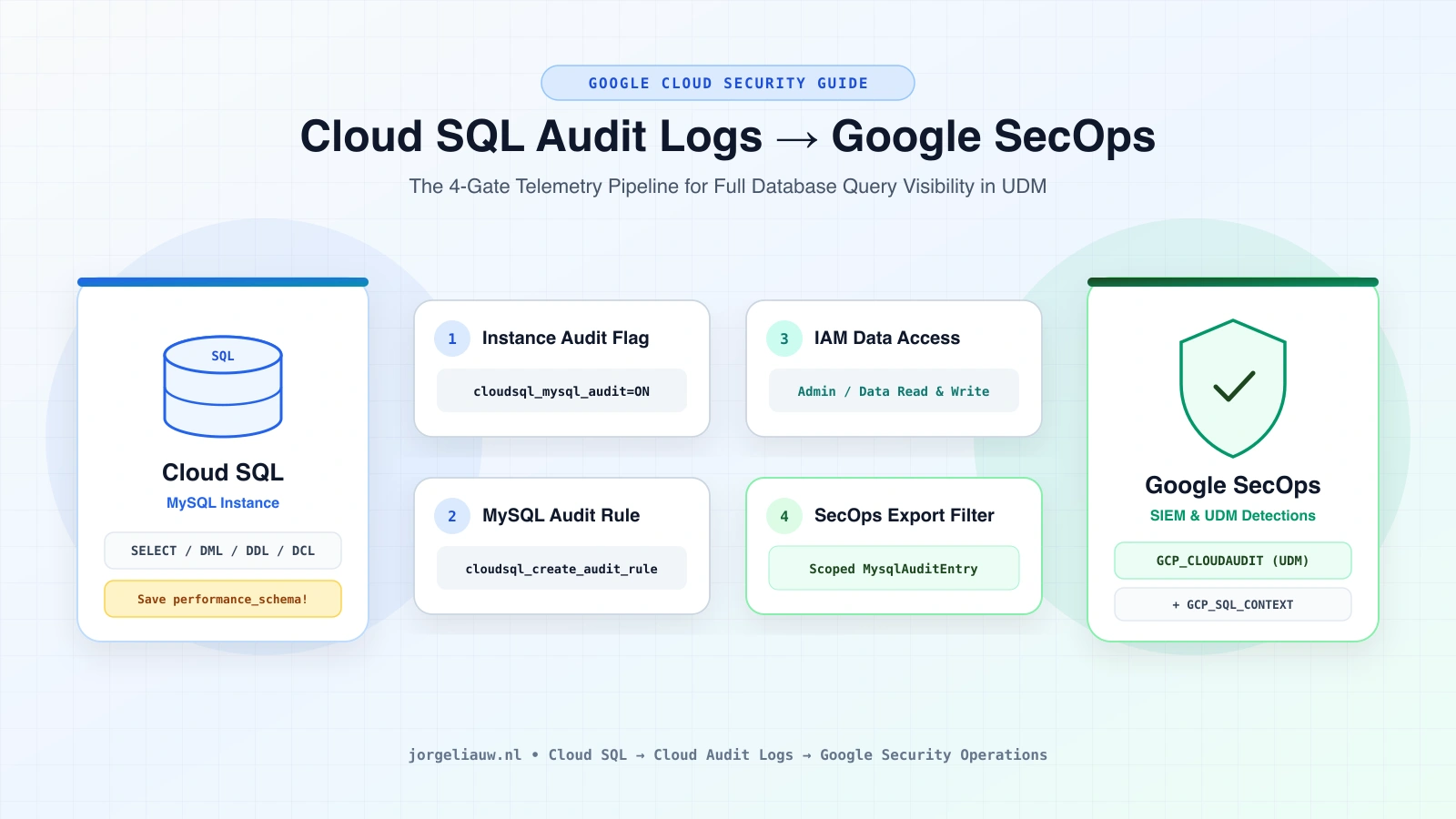
Whenever I sit down with customers or fellow security engineers to onboard Google Cloud workloads into Google Security Operations (SecOps), Cloud SQL audit logging almost always sparks the same conversation: “We turned on the audit flag—so why aren’t any SQL queries showing up in SecOps?”
Before we jump into the how, let’s be clear about why we are doing this.
Standard cloud control-plane logs (Admin Activity) tell you if someone created, patched, or deleted a Cloud SQL instance. It doesn’t tell you anything about what is happening inside of your database. If an attacker compromises an application credential, exploits a vulnerability in an internet-facing service, or an insider abuses privileged access, the malicious activity happens at the SQL layer:
- Failed login brute-forcing or unexpected account connections
- Rogue
CREATE USERorGRANTstatements to establish persistence - Suspicious
SELECTsweeps exfiltrating sensitive customer or financial tables - Unauthorized
UPDATE,DELETE, orDROPstatements tampering with production data
Without database audit logs flowing into Google SecOps, your SOC cannot detect malicious attempts targeting your data—and during an incident, your responders are left blind without a forensic query trail.
Getting Cloud SQL for MySQL audit logs all the way into Google SecOps requires four separate gates to line up. Miss even one, and the logs quietly drop along the way. Here is the short, field-tested walkthrough I share with teams to get it right the first time.
⚠️ Important First: Save performance_schema before changing any Flags!
If you are enabling audit logging during an active investigation, pause for 60 seconds before touching any Cloud SQL flags.
Enabling cloudsql_mysql_audit always triggers a MySQL database restart. As soon as MySQL restarts, its volatile in-memory performance_schema tables—active sessions, connected accounts, and historical query digests—are wiped clean.
Run these read-only queries first and save the output locally before changing the flag:
-- 1. Snapshot active threads and sessions
SELECT * FROM performance_schema.threads;

-- 2. Snapshot user accounts and connection statistics
SELECT * FROM performance_schema.accounts;

-- 3. Snapshot recent SQL query digests before reboot clears memory
SELECT * FROM performance_schema.events_statements_summary_by_digest
ORDER BY LAST_SEEN DESC
LIMIT 500;
Step 1: Enable the cloudsql_mysql_audit flag (Console, CLI & Terraform at Scale)
First, enable the Cloud SQL for MySQL Audit Plugin on your instance via the Google Cloud Console (SQL → Instance → Edit → Flags and parameters → cloudsql_mysql_audit = ON) or via the gcloud CLI:
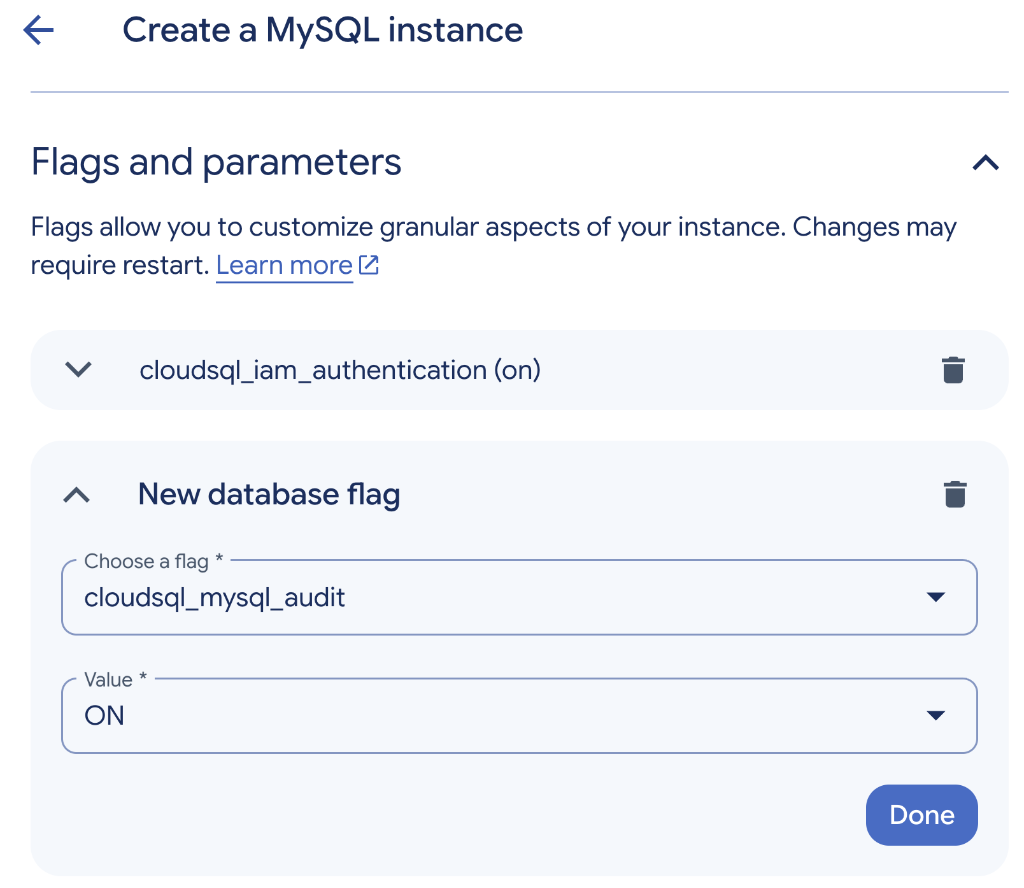
cloudsql_mysql_audit = ON database flag in Google Cloud Console (alongside existing flags such as cloudsql_iam_authentication).Heads-up: When using the CLI,
gcloud sql instances patch --database-flagsreplaces all existing flags on the instance. Check your current flags first (for examplecloudsql_iam_authentication=onabove) and include them together so you don’t overwrite production settings!
# 1. Check existing flags on your instance first
gcloud sql instances describe INSTANCE_NAME \
  --format="value(settings.databaseFlags)"

# 2. Enable MySQL auditing (include any existing flags separated by commas)
# Note: This triggers a database restart!
gcloud sql instances patch INSTANCE_NAME \
  --database-flags=cloudsql_mysql_audit=ON
(Tip: For stricter compliance workloads, use FORCE_PLUS_PERMANENT instead of ON so MySQL refuses to start un-audited and blocks anyone from unloading the plugin at runtime. After the restart, run SHOW PLUGINS; inside MySQL to confirm cloudsql_mysql_audit is ACTIVE.)
Enabling auditing across your organization with Terraform
Clicking through the Console works for a single database, but in a real organization with dozens of Cloud SQL instances and projects, you want this enforced via Terraform—both on your Cloud SQL fleet and on your Organization IAM Data Access Audit Logs:
# 1. Enforce cloudsql_mysql_audit across your Cloud SQL MySQL fleet
resource "google_sql_database_instance" "mysql_audited" {
  for_each            = var.mysql_instances
  project             = var.project_id
  name                = each.key
  region              = each.value.region
  database_version    = "MYSQL_8_0"
  deletion_protection = true

  settings {
    tier            = each.value.tier
    disk_autoresize = true # Prevents audit log staging (4 MB/s cap) from filling disk

    database_flags {
      name  = "cloudsql_mysql_audit"
      value = "ON" # Or "FORCE_PLUS_PERMANENT"
    }
  }
}

# 2. Enable Cloud SQL Data Access Audit Logs once across the entire GCP Organization
resource "google_organization_iam_audit_config" "cloudsql_data_access" {
  org_id  = var.org_id
  service = "cloudsql.googleapis.com"

  audit_log_config {
    log_type = "ADMIN_READ"
  }
  audit_log_config {
    log_type = "DATA_READ"
  }
  audit_log_config {
    log_type = "DATA_WRITE"
  }
}
By standardizing database_flags inside your shared Terraform Cloud SQL module and setting google_organization_iam_audit_config at the organization root (or folder level via google_folder_iam_audit_config), every new Cloud SQL instance inherits database audit logging automatically.
Step 2: Create an audit rule inside MySQL
Enabling the plugin alone doesn’t generate query logs yet—you also need to tell MySQL what to audit using Cloud SQL’s built-in stored procedures:
-- Audit ALL users@hosts ('*'), ALL databases ('*'), ALL objects/tables ('*'),
-- ALL operations ('*'), Both successful and failed commands ('B'), and reload immediately (1):
CALL mysql.cloudsql_create_audit_rule('*', '*', '*', '*', 'B', 1, @outval, @outmsg);

-- Verify the rule was created (@outval = 0 and @outmsg = 'OK' means success):
SELECT @outval, @outmsg;

-- View all active audit rules:
CALL mysql.cloudsql_list_audit_rule('*', @outval, @outmsg);
SELECT @outval, @outmsg;
Three quick production tips:
- Disk buffer rate: Cloud SQL stages audit logs locally and uploads them to Cloud Logging at up to 4 MB/s—always keep Automatic storage increases (
disk_autoresize) enabled. - High-QPS read databases: Notice we audited
'B'(Both successful and failed attempts)—failed commands ('U') are essential to spot brute-force or unauthorized table probing! If logging everySELECTis too noisy on a read-heavy instance, change the 4th parameter from'*'to'dml,ddl,dcl'. - Read Replicas: Rules replicate from the primary automatically, but run
CALL mysql.cloudsql_reload_audit_rule(1);on each replica to activate them.
Step 3: Enable IAM Data Access audit logs & verify in Cloud Logging
If you didn’t apply the organization-wide Terraform config above, enable Data Access audit logs in the Google Cloud Console (GCP drops data_access logs by default):
- Go to IAM & Admin → Audit Logs.
- Filter for Cloud SQL (
cloudsql.googleapis.com) and select it. - In the right-hand panel under Permission types, enable Admin read, Data read, and Data write, then click Save.
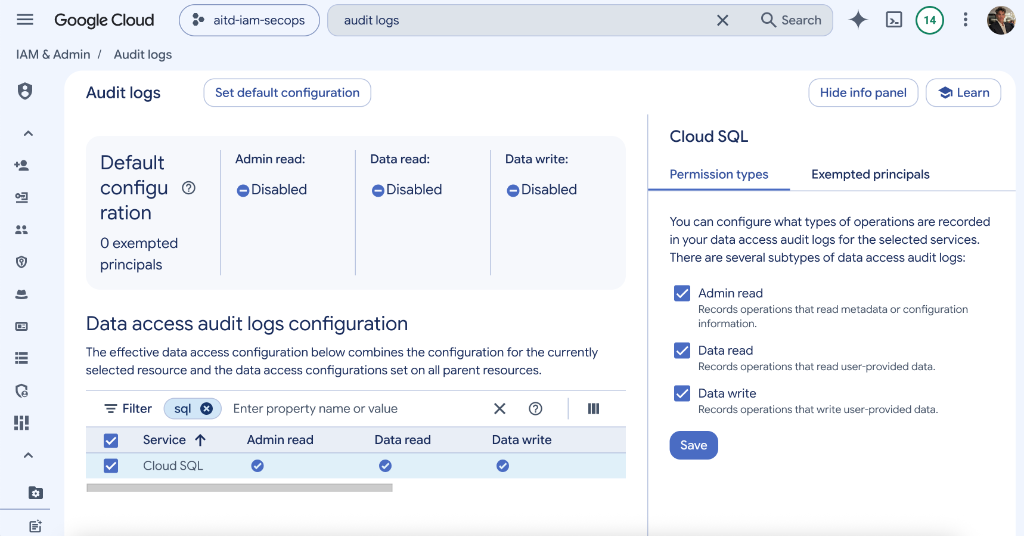
Next, open Logs Explorer (make sure you have the Private Logs Viewer role, roles/logging.privateLogViewer) and verify your MysqlAuditEntry logs are landing in Cloud Logging:
resource.type="cloudsql_database"
logName:"cloudaudit.googleapis.com%2Fdata_access"
protoPayload.serviceName="cloudsql.googleapis.com"
protoPayload.request.@type="type.googleapis.com/google.cloud.sql.audit.v1.MysqlAuditEntry"
Step 4: Update the Google SecOps Custom Export Filter
Here is the final step that catches almost everyone off guard.
When you open Google Security Operations → Ingestion in the Google Cloud Console, you will likely see Google Cloud logging already set to Enabled:
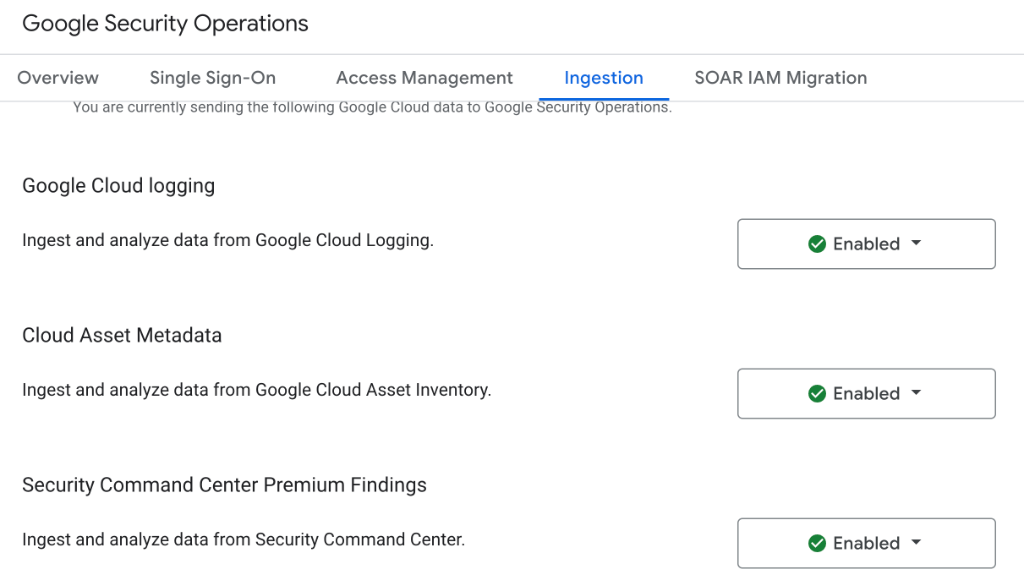
data_access logs. (Keep Cloud Asset Metadata enabled too—it sends GCP_SQL_CONTEXT to enrich your instances!)Why your SQL queries still don’t show up: Out of the box, Google SecOps’s default export filter only forwards cloudaudit.googleapis.com/activity, cloudaudit.googleapis.com/system_event, and dns.googleapis.com/dns_queries. It intentionally omits cloudaudit.googleapis.com/data_access so organizations don’t accidentally ingest terabytes of routine Cloud Storage or BigQuery reads.
To forward your Cloud SQL audit logs without pulling in unrelated data_access noise across GCP, open Custom export filter settings under the Ingestion tab and append a scoped MysqlAuditEntry clause:
log_id("dns.googleapis.com/dns_queries")
OR log_id("cloudaudit.googleapis.com/activity")
OR log_id("cloudaudit.googleapis.com/system_event")
OR (log_id("cloudaudit.googleapis.com/data_access") AND resource.type="cloudsql_database" AND protoPayload.request.@type="type.googleapis.com/google.cloud.sql.audit.v1.MysqlAuditEntry")
Here is how that looks inside Custom export filter settings (here combined alongside Model Armor telemetry):
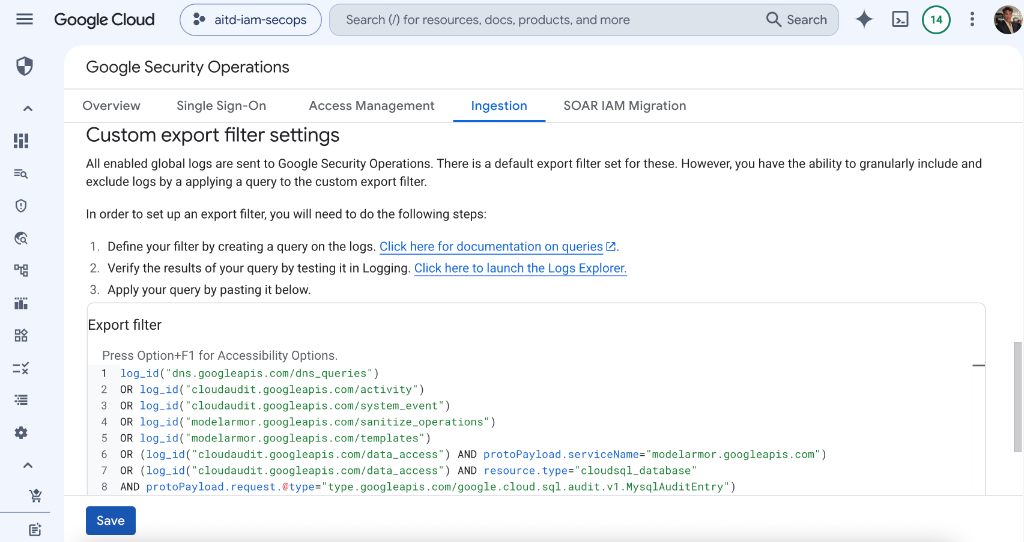
MysqlAuditEntry clause under Google Security Operations → Ingestion → Custom export filter settings.(Tip: Want to keep SELECT statements in Cloud Logging for short-term debugging, while only exporting logins, INSERT, UPDATE, DELETE, DDL, and GRANT events to Google SecOps? Just add AND NOT protoPayload.request.cmd="select" inside that last parenthesis. You can also estimate log volume beforehand with my Google SecOps Data Ingestion Calculator.)
Step 5: Verify & Hunt inside Google SecOps
Run a test query (including a deliberate failed query or privilege check) on your Cloud SQL database, wait a minute or two, and run this UDM search in Google SecOps → Search:
metadata.log_type = "GCP_CLOUDAUDIT"
metadata.product_name = "Google Cloud SQL"
metadata.product_event_type = "cloudsql.instances.query"
Inside each UDM event, the GCP_CLOUDAUDIT parser maps the key SQL forensics fields right out of the box:
principal.user.userid— the database user who ran the statement (e.g.rootorappuser)target.resource.attribute.labels["sql_operation_type"]— the SQL operation (select,insert,delete,grant,create_user,connect)target.resource.attribute.labels["request_query"]— the exact SQL statement executed (with passwords masked by default)
Your Cloud SQL activity—authenticated users, client hosts, executed SQL statements, affected tables, and error codes—is now normalized in UDM, giving your team full visibility to detect and investigate malicious database activity in real time! 🛡️

Jorge Liauw Calo
Security Engineer at Google Cloud (Google Cybershield) with 13+ years of experience in Cybersecurity across highly regulated industries including Semiconductor, Banking, Fintech, and Insurance. Active member of the Google Cloud Community BeNeLux and Google Cloud Security Community Amsterdam.